![CA-StateBar_Logo_Horizontal_White_LargeSeal_.png]](https://info.calbar.ca.gov/hs-fs/hubfs/CA-StateBar_Logo_Horizontal_White_LargeSeal_.png?height=50&name=CA-StateBar_Logo_Horizontal_White_LargeSeal_.png)
Review the steps below to complete the online payment.
⇒ Please Note: Submitting only a payment does not complete the application process.
-
You must return to the application and continue past the “Fees and Payment” segment to the “Application Submission” segment. Applications that have not been submitted and approved are considered incomplete and may be subject to penalties.
-
If a payment or the application is submitted on or after the renewal deadline, a late penalty fee may be imposed. All fees must be paid in full before the application can be considered complete.
- If an LC did not pay prior‑year fees, including late fees, those fees must be paid along with the current year’s fees. If you are making a payment for the current year and have not paid the prior‑year fees—and those prior‑year fees are not listed in the payment segment of the application—please submit a Licensee Records and Compliance Inquiry form requesting to pay the prior‑year fees. A 2026 renewal application cannot be completed until all prior‑year fees have been paid.
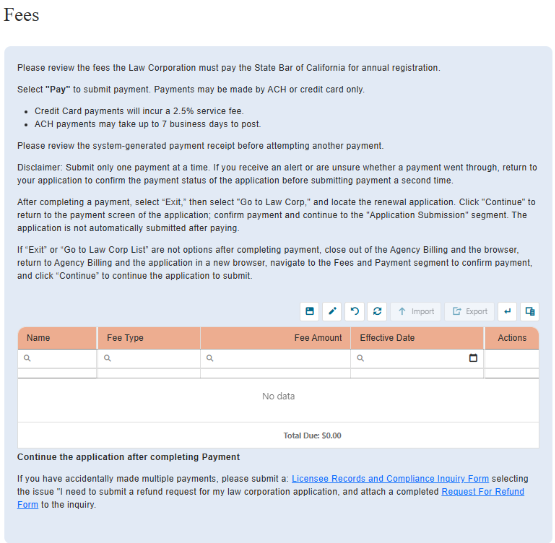
Fees and Payments
-
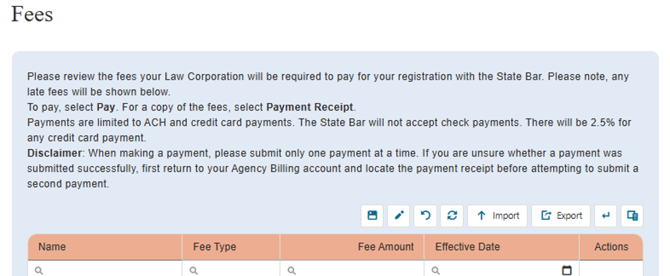
Review the fees assessed for the application.
-
Click “Pay,” to be directed to the Agency Billing payment portal to pay the Law Corp's renewal fees.
-
Refer to Appendix A: Schedule of Charges and Deadlines to confirm the fees have been applied correctly.
-
Avoid submitting payments through the Agency Billing payment portal more than once within a 24‑hour period.
-
- Check the Agency Billing Law Corp List to verify there is only one renewal application pending for the law corporation.
-
Locate a payment receipt for the recent payment made through the Agency Billing payment portal. Confirm the reciept indicates one payment was submitted.
- Check the bank/credit card transactions for a charge from the State Bar of California. Confirm only one charge was applied.
Navigating the Payment Portal - Credit Card Payments
3. In the payment portal, applicants are given the choice of paying through credit card or ACH.-
- If Credit Card is selected, input the credit card information and billing address. Click "Next" when complete.
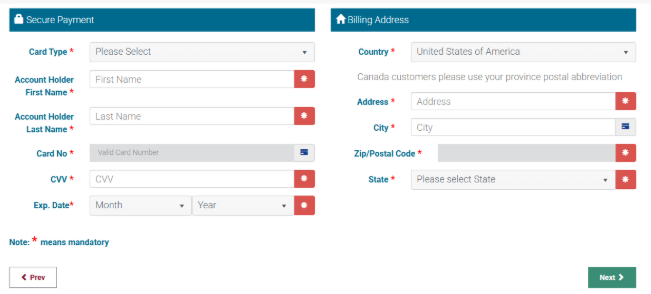
- If Credit Card is selected, input the credit card information and billing address. Click "Next" when complete.
⇒ Please Note: Paying through credit cards will incur a 2.5% service fee.
Credit card chargeback dispute letters will not be contested. If, upon review, the chargeback is not related to a duplicate or erroneous payment, the application will be updated to reflect that it is incomplete and pending payment. If the application was previously approved, its status will be updated to “Pending” and/or “Closed,” as appropriate. The payment column in the Law Corporation list view will also be updated to display “Pending Payment,” as the application fee remains outstanding.
Navigating the Payment Portal - ACH Payments
b. If ACH is selected (electronic check), input the U.S. bank information. Click “Next” when complete.
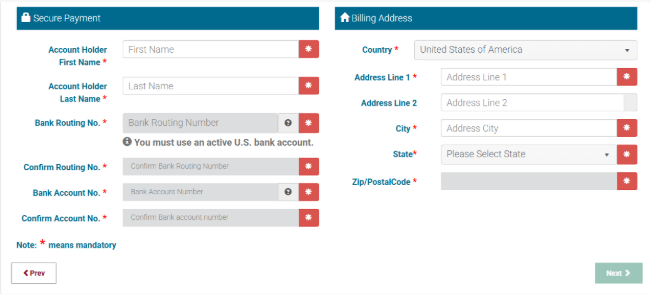 ⇒ Please Note: ACH payments can take up to 7-days to process and will reflect “ACH Pending” in the Payment Status column until processed. If an ACH payment is rejected, the Payment Status column will be updated to read “Not initiated."
4. After payment is complete, applicants will be redirected to this screen. Click "I'm done" to return to the application.
-
There is also a “Print” option that allows for printing/downloading the payment receipt. The grid will reflect the payment and service charge (if applicable).
5. Once there is a zero-balance due on the account, applicants will be able to continue the application to the Application Submission Segment. Click “Continue” to continue.
⇒ Please Note: To download a payment receipt, select “Payment Receipt.”
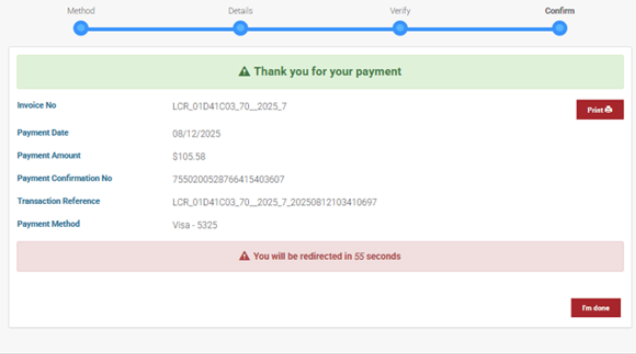
Payment Reciept
A copy of the fees and/or payments can be obtained at any time by:
- Visiting the “Fees and Payments” segment of the application and selecting “Export.”
2. Download a receipt after payment by selecting the “Print” button.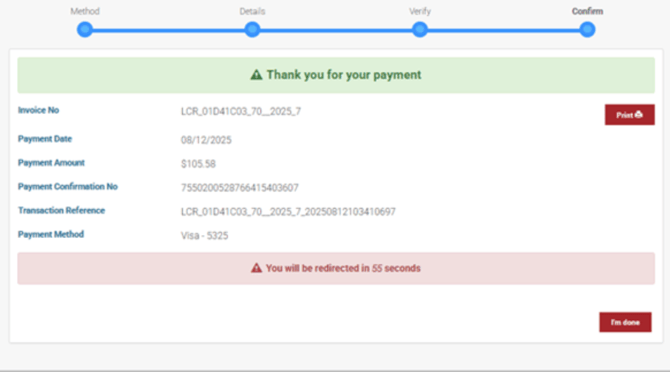
3. Clicking the “Payment Receipt” button on the far-right side of the application when in the Law Corp list view.
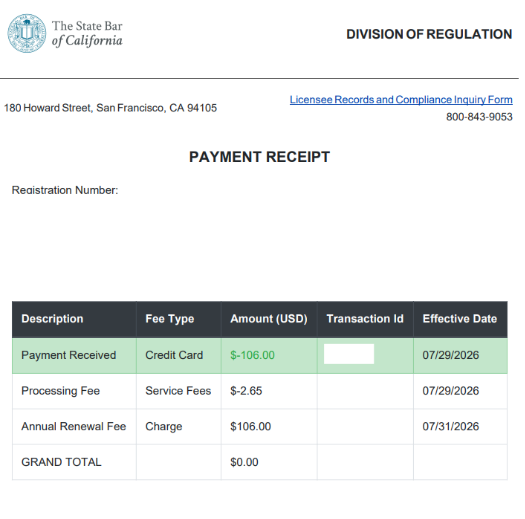
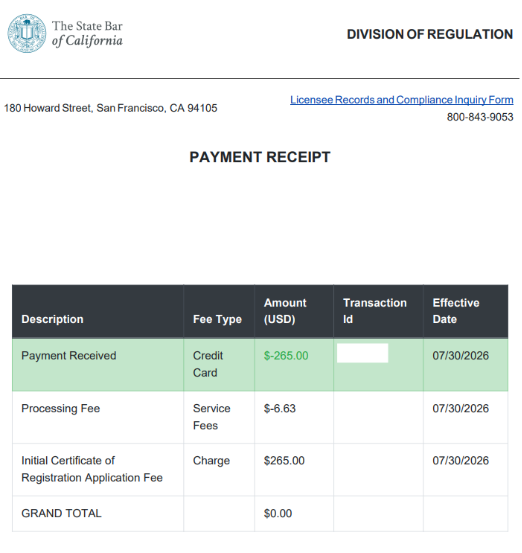
Sample receipts:
Annual Renewal
New Registration
Refunds
Refund requests will take at least 90 days from the date of transaction to process and refunds will be issued via a refund check. If requesting a refund, please allow 90 days from the date of payment.
If payment has been made in error or the LC disagrees with the fees assessed, applicants should submit a Licensee Records and Compliance Inquiry form providing details on:
- Law Corporation name and registration Number (if available).
- Fees paid in error, amount and description.
- Reason for dispute.
If a waiver is granted or fees need to be adjusted, this should be done prior to payment.
⇒ Please Note: Submitting an inquiry form—whether about assessed fees or a pending refund—does not pause or extend the application deadline.