![CA-StateBar_Logo_Horizontal_White_LargeSeal_.png]](https://info.calbar.ca.gov/hs-fs/hubfs/CA-StateBar_Logo_Horizontal_White_LargeSeal_.png?height=50&name=CA-StateBar_Logo_Horizontal_White_LargeSeal_.png)
Review the steps below to submit the application.
⇒ Please Note:
-
An application is not complete until it has been submitted, signed via DocuSign, and the record status indicates "Approved" on the Law Corp List view.
-
If an application is submitted on or after the renewal deadline, a late penalty fee may be imposed on the application. All fees must be paid in full before a complete application can be submitted.
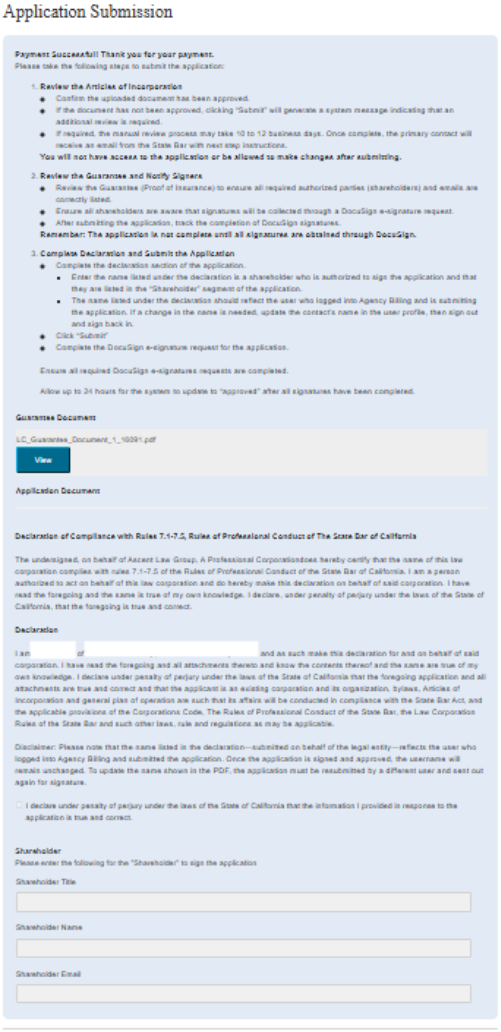
Submitting the Application
- Review the Articles of Incorporation to confirm it has been approved. The status of the article of incoporation is displayed on the Law Corp List view.
- If the document has not been approved, an additional review is required. The manual review process may take 10 to 12 business days. Once complete, the primary contact will receive an email from the State Bar with next step instructions.
- If the Articles of Incorporation have not been approved, an alert will appear when attempting to submit the application.
- Review the guarantee and notify signers (all shareholders).
- Ensure all shareholders are aware that signatures will be collected through an emailed DocuSign e-signature request.
- After submitting the application, track the completion of DocuSign signatures status displayed on the Law Corp List view.
- Review the application and complete the Declaration.
- Enter the name listed under the declaration is a shareholder who is authorized to sign the application and that they are listed in the “Shareholder” segment of the application.
- The name listed under the declaration should reflect the user who logged into Agency Billing and is submitting the application. If a change in the name is needed, update the contact’s name in the user profile, then sign out and sign back in.
- Click “Submit”.
- Once the application is submitted, complete the emailed DocuSign e-signature request for the application.
⇒ Please Note: an application is not complete until all mandatory signers have submitted an electronic signature.
-
All Shareholders must sign the Guarantee document. The authorized signer listed at the bottom of the Application Submission page will also be required to sign the Renewal document.
-
The State Bar will not accept a paper version of the signed application and/or guarantee document/s.
What to Expect After Submitting
After submitting an application:
- The Guarantee Document will be sent to all Shareholders for signature, via an emailed DocuSign request (if applicable to the renewal application) and the a PDF version of the full online application will be sent to the submitting shareholder for signature, via a DocuSign request.
- Select “Return to Law Corp list,” and review the column status updates to the application, including:
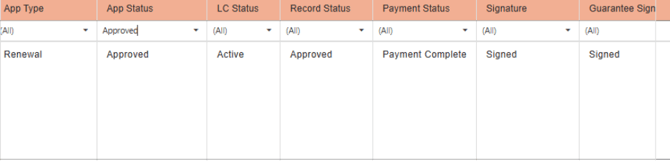
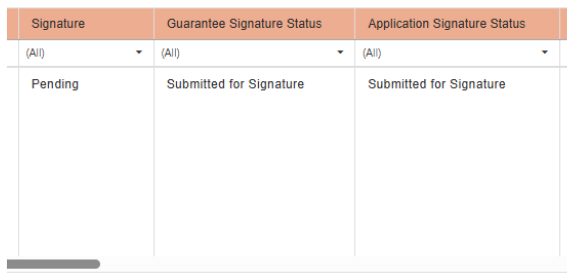
- The application will say, “Submitted for signature,” in columns titled “Application Signature Status,” and/or “Guarantee Signature Status,” to indicate there are DocuSign requests pending for the application.
- If the application says, “Signature Not Required” in columns titles “Application Signature Status,” and/or “Guarantee Signature Status,” the application has not been submitted for signature/s.
- When the application has been approved the record status will say "Approved." The primary contact will receive an email confirming the renewal application has been approved.
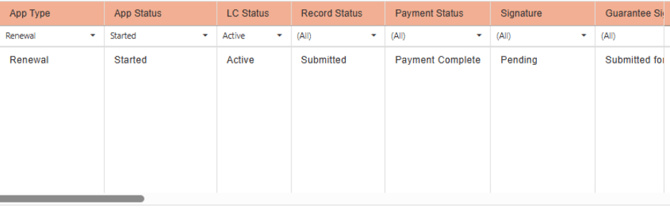 Once approved, when viewing the application in the Law Corp List view, the “App Status” will be updated to “Approved.”
Completing and Reviewing DocuSign Requests
Once an application is submitted, DocuSign requests are sent via email. There are two documents that require signature based on the application type and changes to the Shareholders segment of the application. All requests must be completed for the application to be complete. See below for guidance on checking the status of requests, identifying pending requests, and ensuring requests are received by signers.
There are two documents that require signatures:
-
The Renewal application – this request is sent to the listed authorized signer.
-
The Guarantee document – this request is sent to every shareholder listed.
All signatures must be provided via DocuSign for the application to be complete.
To Review the Status of Signatures (Sent from DocuSign via email)
There are several ways to view the mandatory signees and monitor the status of their signature completion from the Law Corp List:
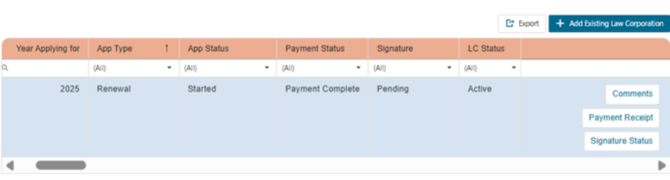
- On the right side of the Law Corp List grid, click the “Signature Status” button to review a list of mandatory signees with their completion statuses.
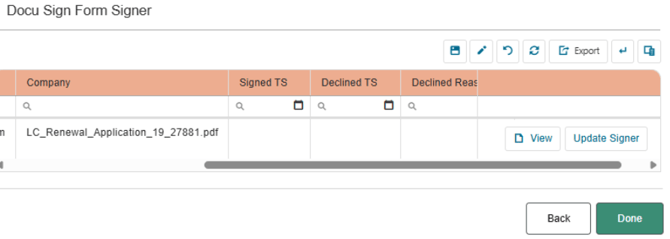
2. On the DocuSign Form Signer pop-up window, applicants can select:
-
- “Update Signer” to change the email address of mandatory signee/s.
- “View” to view a list of all mandatory signees and their signature status.
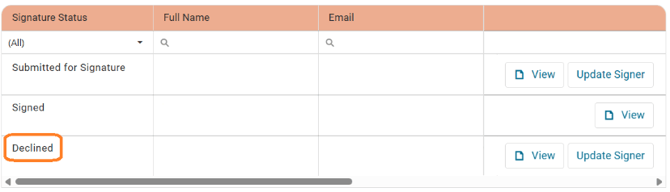
⇒ Please Note: If a signer declines, the Signature Status column will change to “Declined”. State Bar staff will need to open the renewal application again, so the firm can receive the DocuSign for signature request again. This process will require the firm to submit a Licensee Records and Compliance Inquiry form and may result in delays. Please allow enough time to submit the application and for the key persons to sign the document. If a decline occurs, State Bar staff will need time to assist with reopening the ticket. Same‑day requests may not be processed on the day of the deadline.
-
- Guarantee Signature Status
- Application Signature Status
Example of pending signature requests:
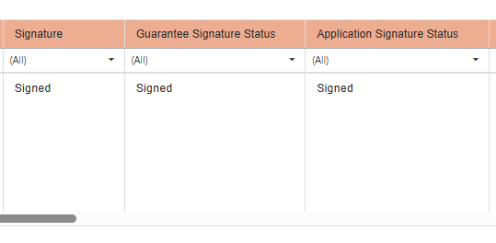
Example of completed signature requests:
Missing Signatures
If the status of the application or guarantee documents is ‘Submitted for Signature,’ the documents were successfully sent through DocuSign but have not yet been signed. Please reach out to the designated shareholder or contact responsible for signing the application, as well as any shareholders who need to sign the guarantee, to confirm they have received the DocuSign email.
- Does the application have all the required signatures?
- The application is not complete until all required signatures have been received.
- There are two documents that require signatures:
- The Renewal application – this request is sent to the listed authorized signer.
- The Guarantee document – this request is sent to every shareholder listed.
- Below are potential reasons why one or more signatures have not been completed:
- Payment was made and the application was submitted but, one or more of the DocuSign emails went to spam.
- The DocuSign requests were received but only one of the two requests were signed. The authorized sign will be required to sign both the renewal application and the guarantee document.
- One or more emails entered may have a typo. As a result, DocuSign was unable to email the document to the correct recipient.
- The system is showing an error message.
Try the steps below to resolve what has delayed the successful completion of the Law Corporation Annual Renewal application.
- Have the recipient look for the email –
- Check the inbox and spam folders, looking for the following key terms:
- Law Corp/LLP eSignature Portal,
- State Bar of California - Division of Regulation sent you a document
- dse@docusign.net
Below is an example of the DocuSign email sent to the shareholders.
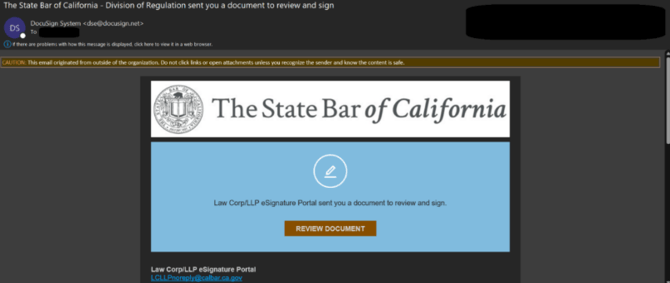
- Check the inbox and spam folders, looking for the following key terms:
- If the recipient is unable to locate the DocuSign email, review the email addresses entered in the application to ensure there are no typos in the recipient’s email address.
- Verify Correct Email(s) Entered by:
- On the DocuSign Form Signer pop-up window, check the email(s) do not have typos.

- If there are typos, click “Update Signer” to change the email address of mandatory signee/s.
Error Message

If you updated the shareholders’ email addresses and need to resubmit but received an error message, please complete the Licensee Records and Compliance Inquiry form.
- Select the Topic, “Law Corporation”, and the Issue, “I have a question/issue about DocuSign signatures in the online renewal/application process”. Describe the steps leading up to the error and include a screenshot in your form submission.